

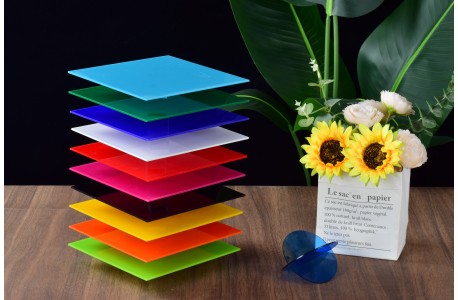
30/12/2025 / Poted by: Yoyo
For CO₂ Laser & CNC Users
Designed for beginners and hobby users. Minimal settings to reduce setup errors.
⚠️ SAFETY FIRST (See Safety Icons)
[Icon: Ventilation] Proper Ventilation
Always use strong exhaust ventilation. Acrylic fumes are irritating and harmful.
[Icon: Goggles] Wear Safety Gear
Laser safety goggles required. Never look at the laser beam.
[Icon: Fire] Fire Safety
Never leave the machine unattended. Keep a fire extinguisher nearby.
1️⃣ MATERIAL PREPARATION (See Preparation Icons)
[Icon: Thickness] Check Material
Confirm you are using a 3mm acrylic sheet.
[Icon: Film] Remove Protective Film
Peel off protective film from both sides before processing.
[Icon: Clean] Clean Surface
Wipe with a lint-free cloth and isopropyl alcohol (IPA).
[Icon: Flat] Keep Flat
Place the sheet flat on the laser bed or CNC table.
2️⃣ MACHINE SETUP (Laser & CNC)
[Icon: Lens] Clean Optics / Tool
- Laser: Clean lens and mirrors - CNC: Use a sharp, clean cutting tool
[Icon: Focus / Z] Focus or Z-Height
- Laser: Focus on material surface - CNC: Set correct Z-zero before cutting
[Icon: Air] Air Assist / Chip Removal
- Laser: Turn air assist ON - CNC: Use air blast or vacuum to clear chips
3️⃣ SIMPLE WORKING SETTINGS (Safe Range)
To reduce user error, only general safe ranges are shown. Always test first.
✂️ Laser Cutting (3mm Acrylic)
· Power: Medium–High
· Speed: Medium
· Passes: 1 pass recommended
· Air Assist: ON
✒️ Laser Engraving
· Power: Low
· Speed: High
· Passes: 1 only
Engraving should frost the surface, not cut through.
CNC Machine Notes (Acrylic)
· CNC machines can also process acrylic sheets
· Use sharp tools designed for plastic/acrylic
· Ensure proper chip removal (air blast or vacuum)
· Avoid overheating, which may cause melting or edge fusion
· Always run a test cut before full production
�� Other Tools – Important Notes
Laser (Diode / Low-Power Lasers)
- Diode lasers may engrave acrylic but usually cannot cut through clear acrylic - Results vary greatly by color and machine power - Always test before use
Table Saw / Circular Saw
- Use blades specifically designed for plastic - Support material fully to prevent cracking or chipping - Cut at steady speed to avoid melting
Scroll Saw / Jigsaw
- Use fine-tooth blades for plastic - Cut slowly to reduce vibration and cracking
Drilling Acrylic
- Use drill bits suitable for plastic - Drill slowly with light pressure - Support material underneath to prevent breakout
⚠️ Always wear appropriate safety protection and test on scrap material first.
4️⃣ BASIC OPERATING FLOW (See Flow Diagram)
1. Turn on ventilation / dust collection
2. Wear safety protection
3. Load and secure material
4. Import design
5. Run a small test
6. Start job and monitor
7. Allow material to cool
8. Remove part and clean machine
5️⃣ QUICK TROUBLESHOOTING (Icons Match Diagram)
Burnt or yellow edges
→ Too much heat. Increase speed or reduce power.
Does not cut through
→ Check focus or Z-height. Run test again.
Melted CNC edges
→ Feed too slow or tool too dull.
Strong odor or smoke
→ Stop immediately and check ventilation.
TIPS FOR BEST RESULTS
· Always test on scrap material
· Back-side engraving gives best clarity
· Clean tools = better results
⚠️ Disclaimer: This guide provides simplified reference settings to reduce setup errors. Actual results depend on machine type and condition. Test before full production.
PRINT & USE NOTICE (Packaging Insert)
· This guide is intended as a quick-start reference for common acrylic processing tools
· No specific machine settings are guaranteed
· Users are responsible for testing and safe operation of their own equipment
⚠️ Improper use of tools or machines may result in damage to materials, equipment, or personal injury.
Thank you for choosing our acrylic sheets. Enjoy safe and creative making!